> For the complete documentation index, see [llms.txt](https://support.ellipal.com/llms.txt). Markdown versions of documentation pages are available by appending `.md` to page URLs; this page is available as [Markdown](https://support.ellipal.com/docs/features-and-advanced-usage/device-usage-and-maintenance/how-to-connect-ellipal-to-metamask.md).
# How to Connect ELLIPAL to MetaMask?
Learn how to connect an ELLIPAL Titan Series wallet to MetaMask for Web3 and dApp use. Your private keys stay offline, and all transactions must be signed on your ELLIPAL device.
{% stepper %}
{% step %}
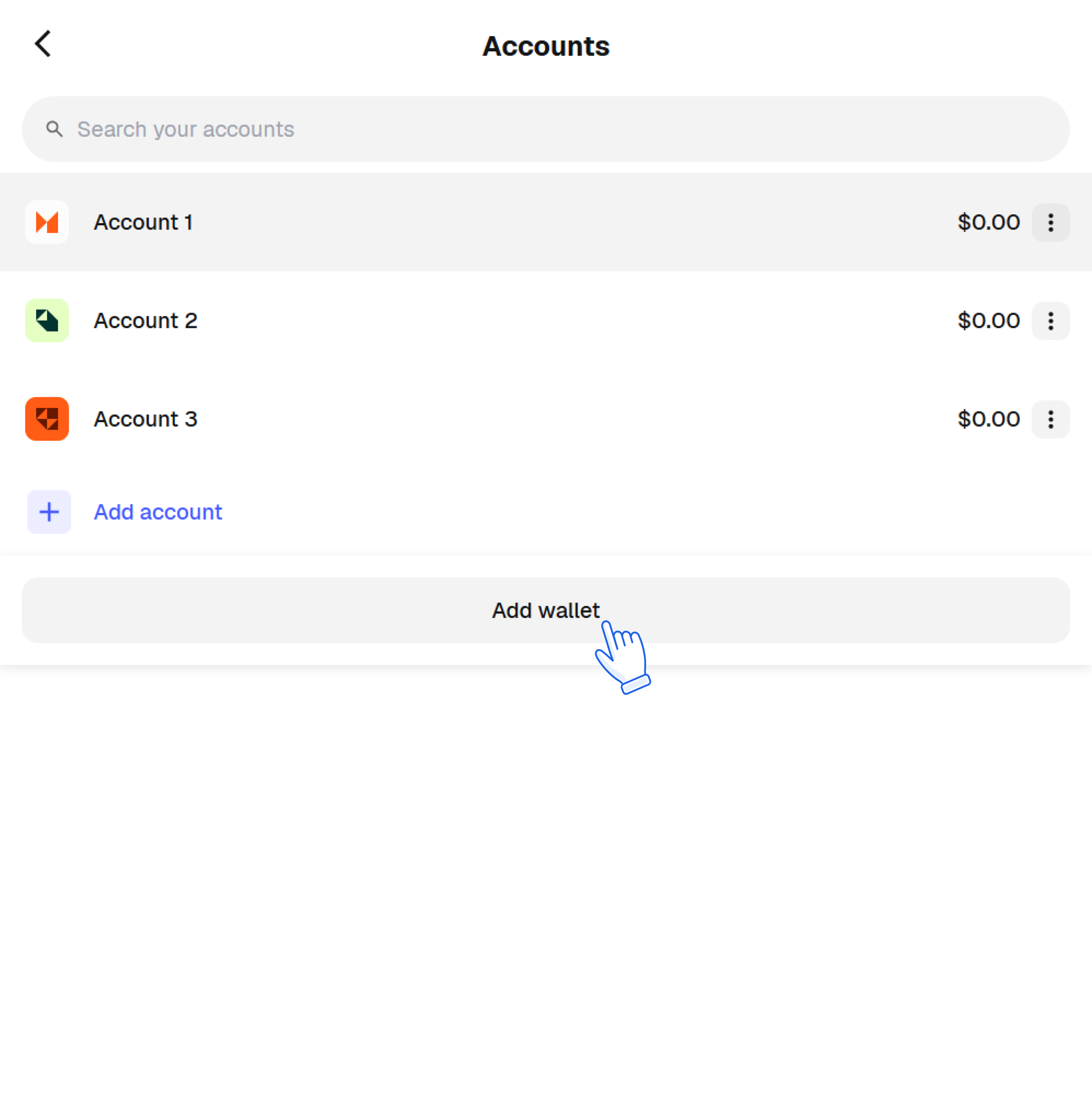
### Open Account List
{% endstep %}
{% step %}
### Tap Add Wallet
{% endstep %}
{% step %}
### Tap Add a Hardware Wallet
{% endstep %}
{% step %}
### Tap QR-based
{% endstep %}
{% step %}
### Tap Continue
{% endstep %}
{% step %}
### Open the MetaMask Connection QR Code on Titan
{% endstep %}
{% step %}
### Place the QR Code in front of Your Camera
{% endstep %}
{% step %}
### Select the Correct Account
{% endstep %}
{% step %}
### Connect Successfully
{% endstep %}
{% endstepper %}