> For the complete documentation index, see [llms.txt](https://support.ellipal.com/llms.txt). Markdown versions of documentation pages are available by appending `.md` to page URLs; this page is available as [Markdown](https://support.ellipal.com/docs/funktionen-and-erweiterte-nutzung/geratenutzung-and-wartung/wie-verbinde-ich-ellipal-mit-metamask.md).

# Wie verbinde ich ELLIPAL mit MetaMask?

Erfahre, wie du eine ELLIPAL Titan Series Wallet für Web3 und dApps mit MetaMask verbindest. Deine privaten Schlüssel bleiben offline.

{% stepper %}
{% step %}

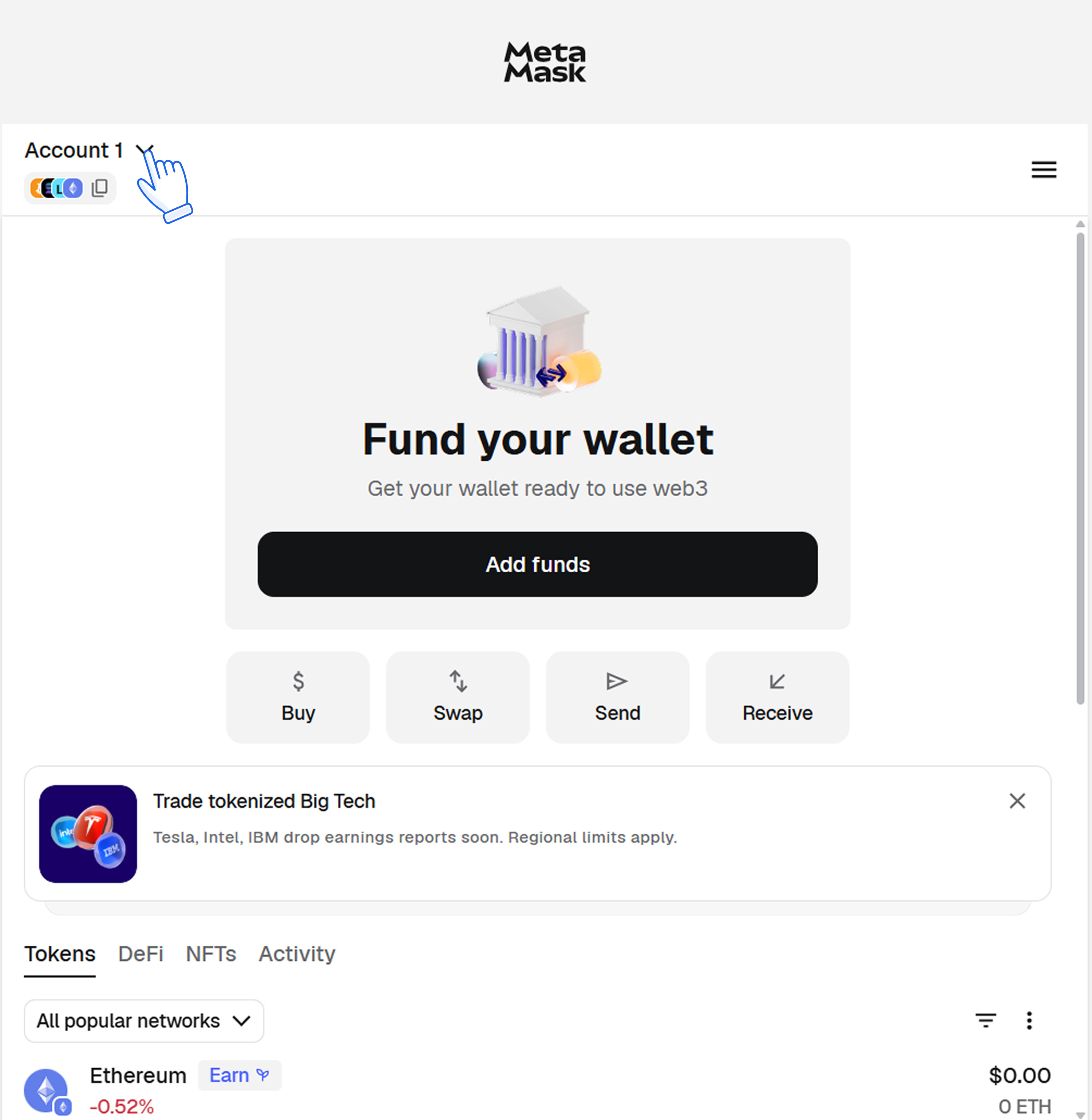
### Kontoliste öffnen
<figure><img src="https://3371849142-files.gitbook.io/~/files/v0/b/gitbook-x-prod.appspot.com/o/spaces%2FkoF1vWiA9DjdhchVktGp%2Fuploads%2FYhpWJJw4hWV2Y8oFKFR4%2Fimage.png?alt=media" alt=""><figcaption></figcaption></figure>
{% endstep %}

{% step %}

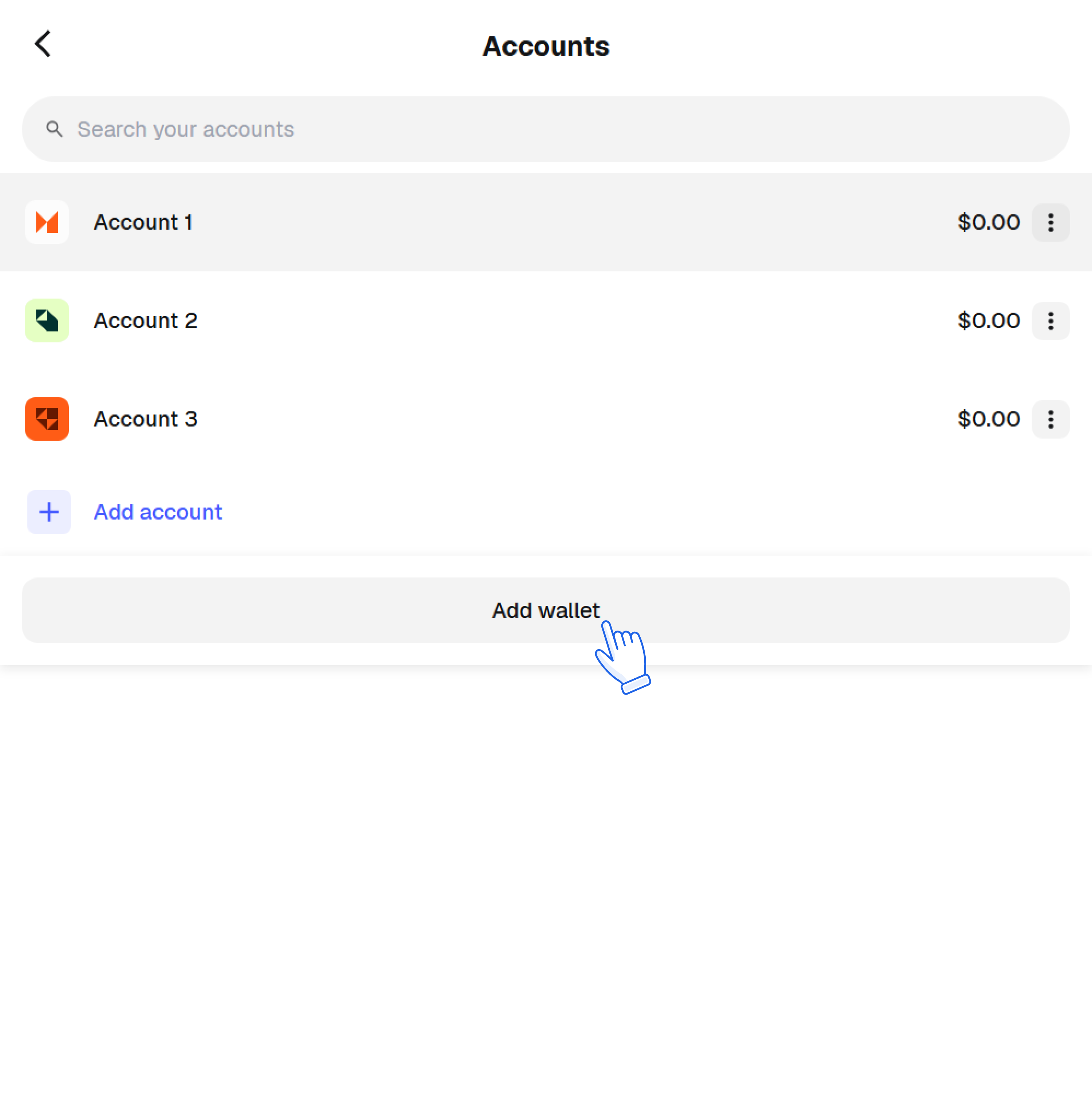
### Add Wallet antippen
<figure><img src="https://3371849142-files.gitbook.io/~/files/v0/b/gitbook-x-prod.appspot.com/o/spaces%2FkoF1vWiA9DjdhchVktGp%2Fuploads%2FZkV2Zmps9CShYyHA2q5V%2Fimage.png?alt=media" alt=""><figcaption></figcaption></figure>
{% endstep %}

{% step %}

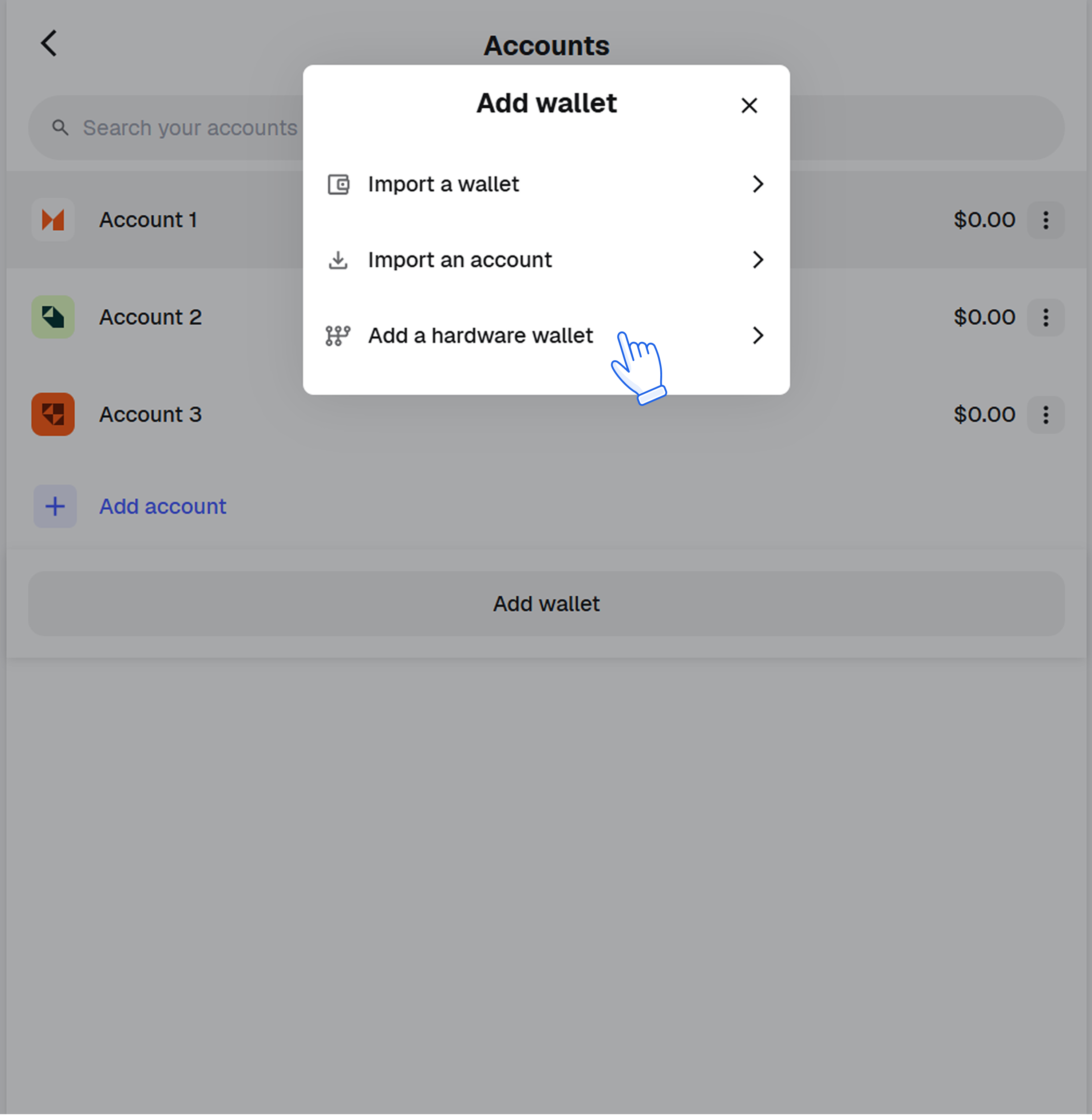
### Add a Hardware Wallet antippen
<figure><img src="https://3371849142-files.gitbook.io/~/files/v0/b/gitbook-x-prod.appspot.com/o/spaces%2FkoF1vWiA9DjdhchVktGp%2Fuploads%2FfmaRowKfTdXyWzKfxx97%2Fimage.png?alt=media" alt=""><figcaption></figcaption></figure>
{% endstep %}

{% step %}

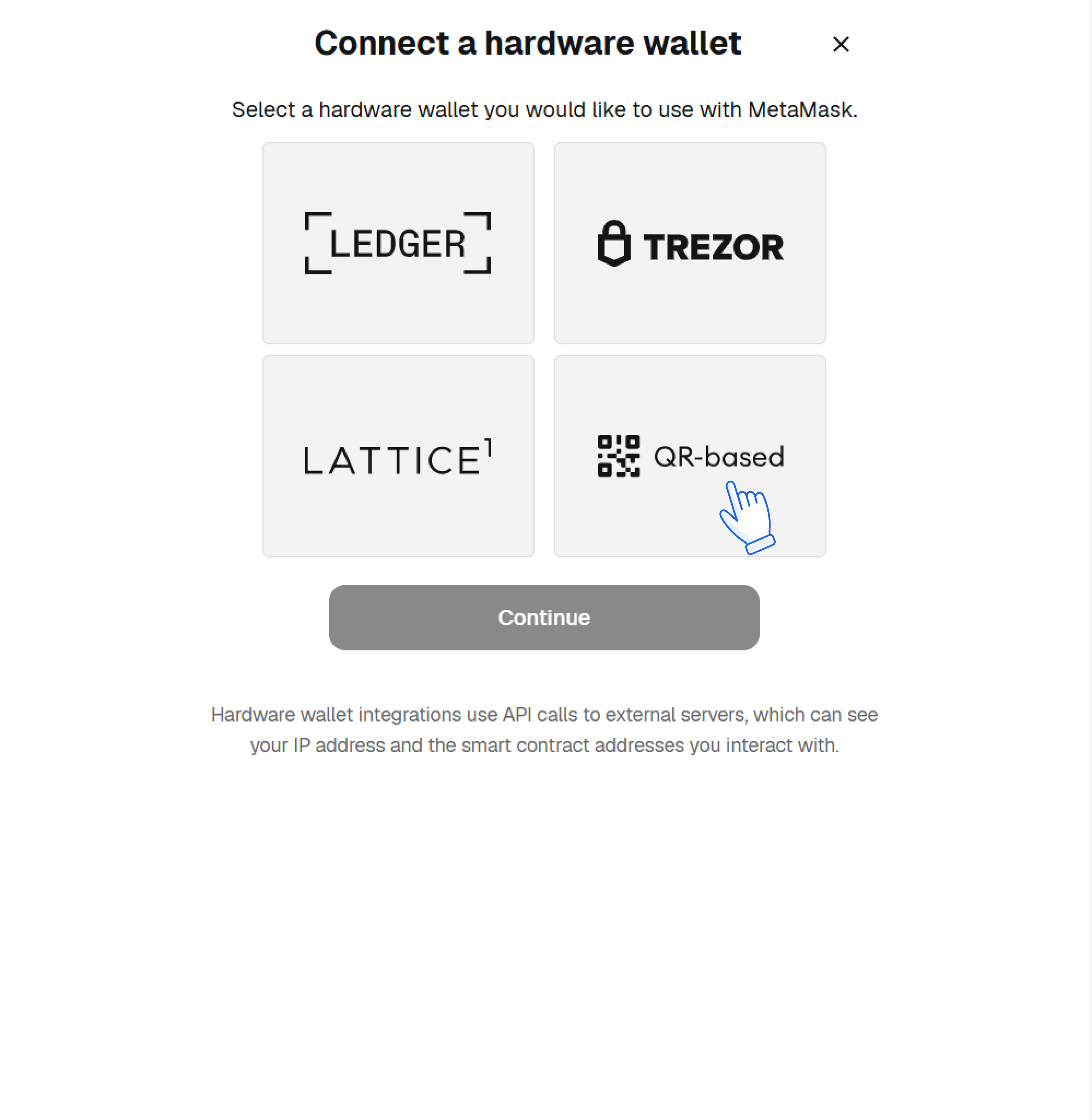
### QR-based antippen
<figure><img src="https://3371849142-files.gitbook.io/~/files/v0/b/gitbook-x-prod.appspot.com/o/spaces%2FkoF1vWiA9DjdhchVktGp%2Fuploads%2FZx0UOFy0hSh3T8vLkrqh%2Fimage.png?alt=media" alt=""><figcaption></figcaption></figure>
{% endstep %}

{% step %}

### Continue antippen
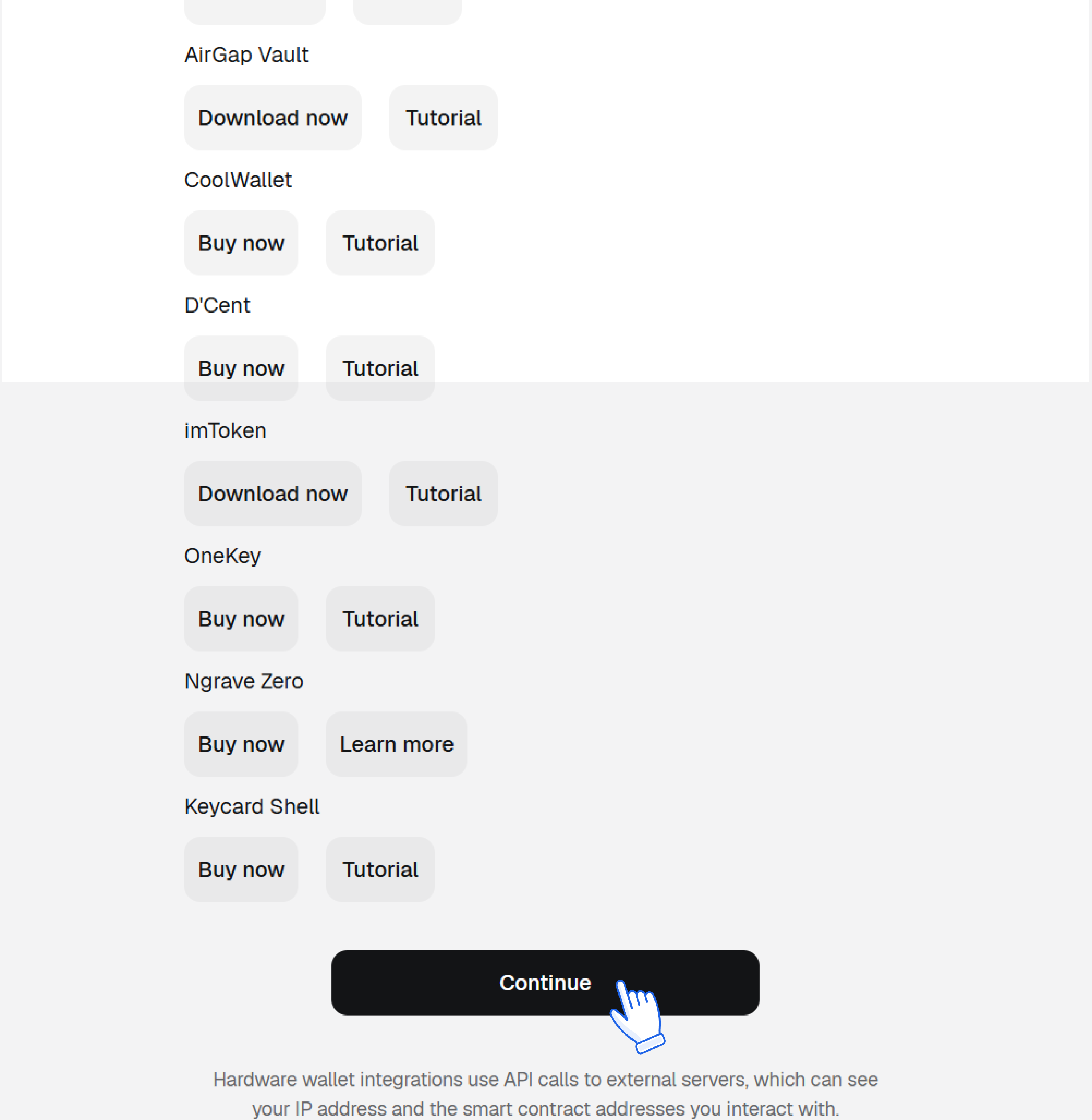
<figure><img src="https://3371849142-files.gitbook.io/~/files/v0/b/gitbook-x-prod.appspot.com/o/spaces%2FkoF1vWiA9DjdhchVktGp%2Fuploads%2FrXYeFH19gCKFq8qilAsb%2Fimage.png?alt=media" alt=""><figcaption></figcaption></figure>
{% endstep %}

{% step %}

### MetaMask-Verbindungs-QR-Code auf dem Titan öffnen
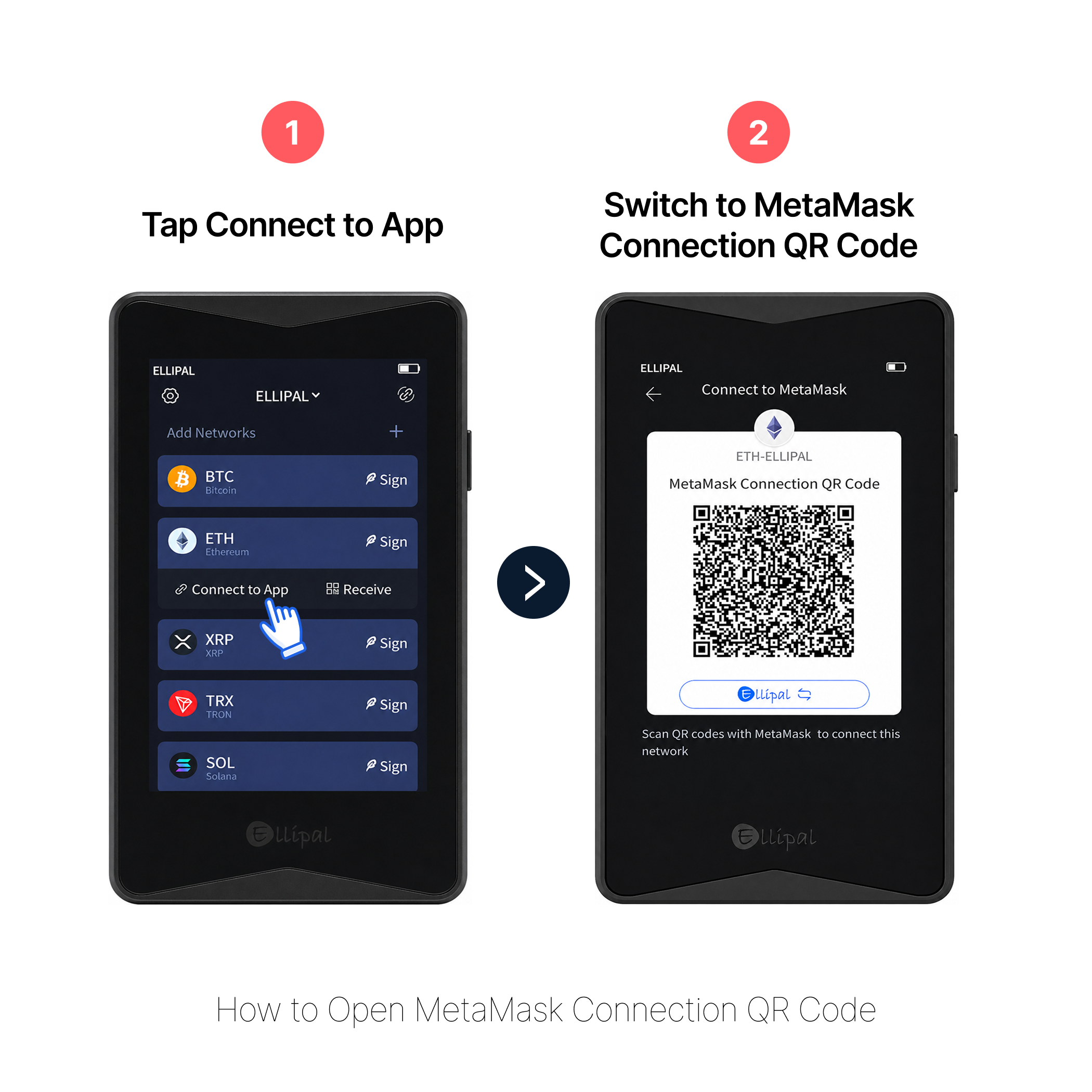
<figure><img src="https://3371849142-files.gitbook.io/~/files/v0/b/gitbook-x-prod.appspot.com/o/spaces%2FkoF1vWiA9DjdhchVktGp%2Fuploads%2FSZ0VQ3ybNicyUP6iExaT%2Fimage.png?alt=media" alt=""><figcaption></figcaption></figure>
{% endstep %}

{% step %}

### QR-Code vor die Kamera halten
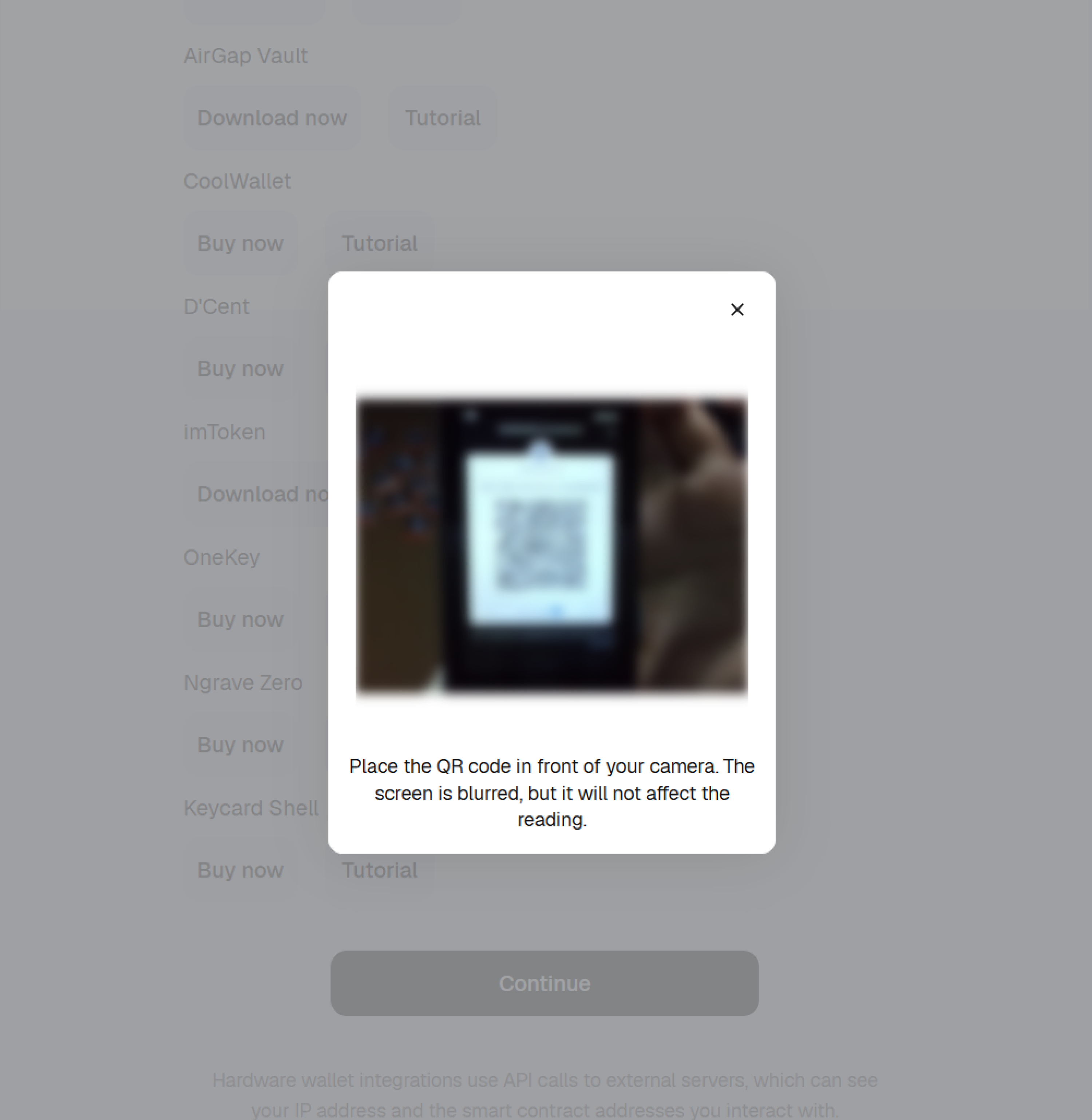
<figure><img src="https://3371849142-files.gitbook.io/~/files/v0/b/gitbook-x-prod.appspot.com/o/spaces%2FkoF1vWiA9DjdhchVktGp%2Fuploads%2FHQdvZ4SrsZQO4k7z3SuY%2Fimage.png?alt=media" alt=""><figcaption></figcaption></figure>
{% endstep %}

{% step %}

### Richtiges Konto auswählen
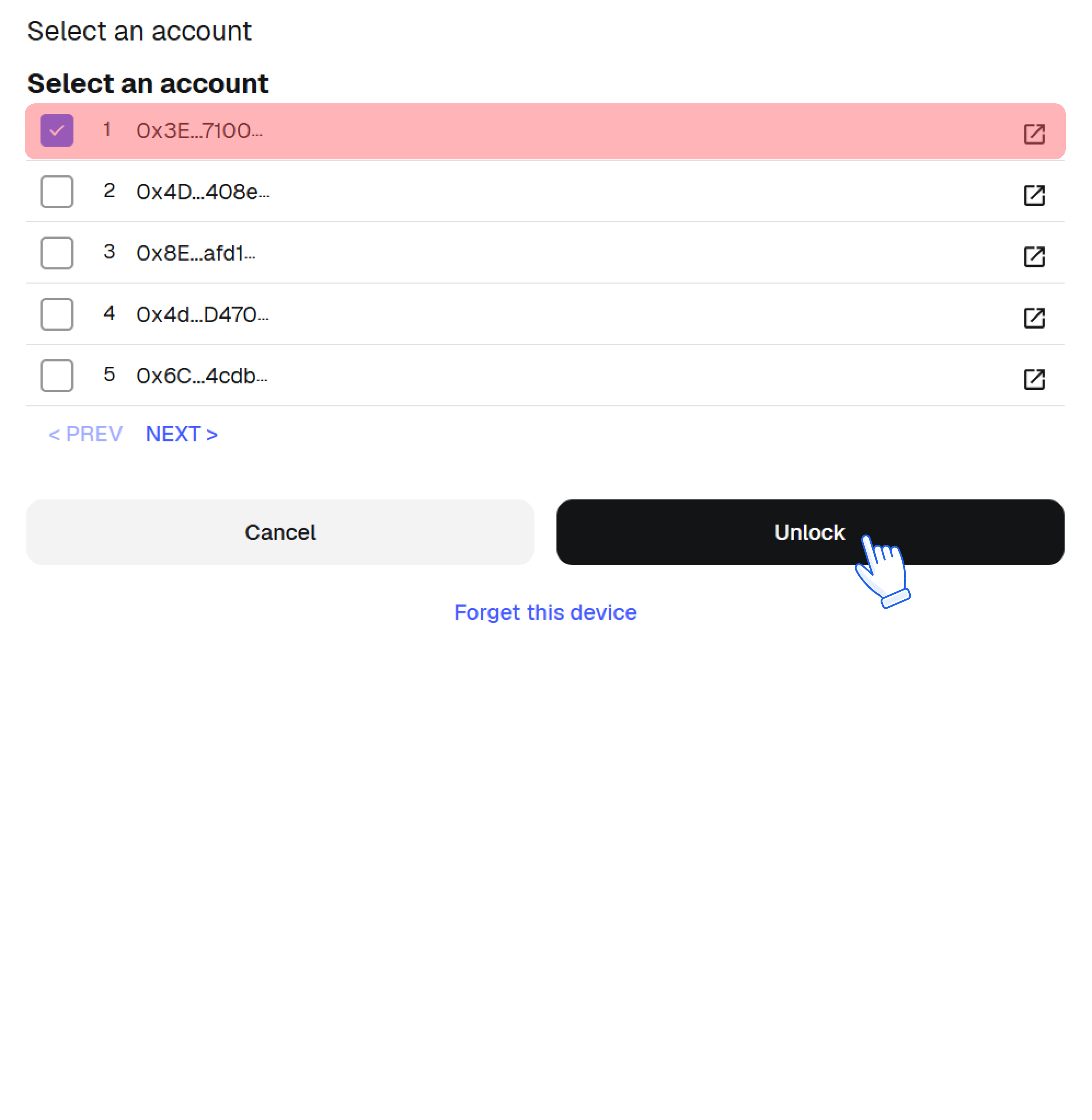
<figure><img src="https://3371849142-files.gitbook.io/~/files/v0/b/gitbook-x-prod.appspot.com/o/spaces%2FkoF1vWiA9DjdhchVktGp%2Fuploads%2Fw7V0Z9qgkCeojwrv74xc%2Fimage.png?alt=media" alt=""><figcaption></figcaption></figure>
{% endstep %}

{% step %}

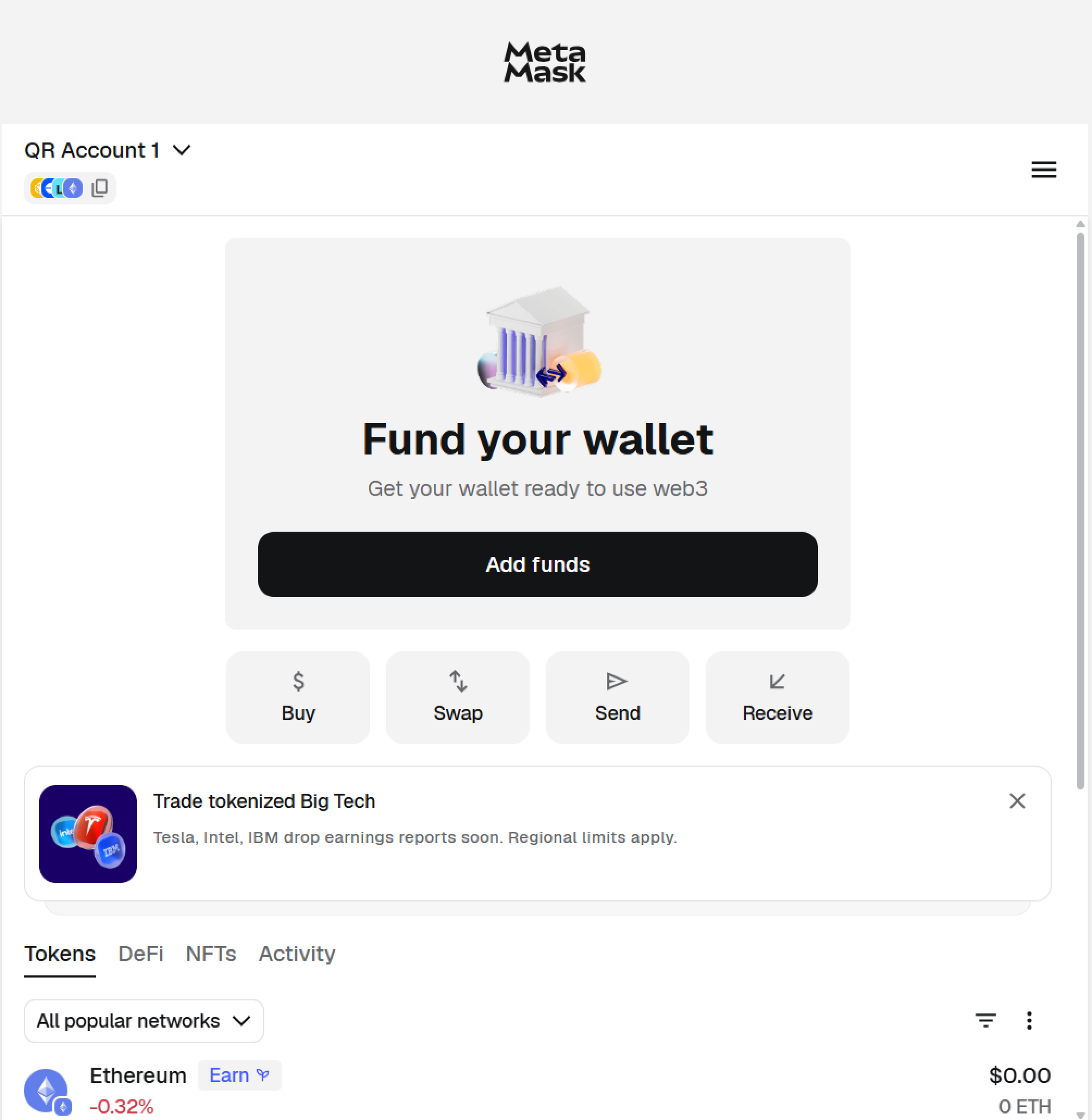
### Erfolgreich verbunden
<figure><img src="https://3371849142-files.gitbook.io/~/files/v0/b/gitbook-x-prod.appspot.com/o/spaces%2FkoF1vWiA9DjdhchVktGp%2Fuploads%2FyWw3WV7jB9lM99dGOVpc%2Fimage.png?alt=media" alt=""><figcaption></figcaption></figure>
{% endstep %}
{% endstepper %}
